Top Navigation Bar UI

What is a top navigation bar component?
Top Navigation Bar is the header component at the top of the screen that provides navigation and actions.
It allows the user to take action (e.g., search bar, bookmark button) or navigate (e.g., cart button, back button).
They are also commonly known as horizontal navigation bars, and are used primarily in mobile apps.
Navigation bars are commonly used in Title or branding, Action buttons, Back and home navigation.
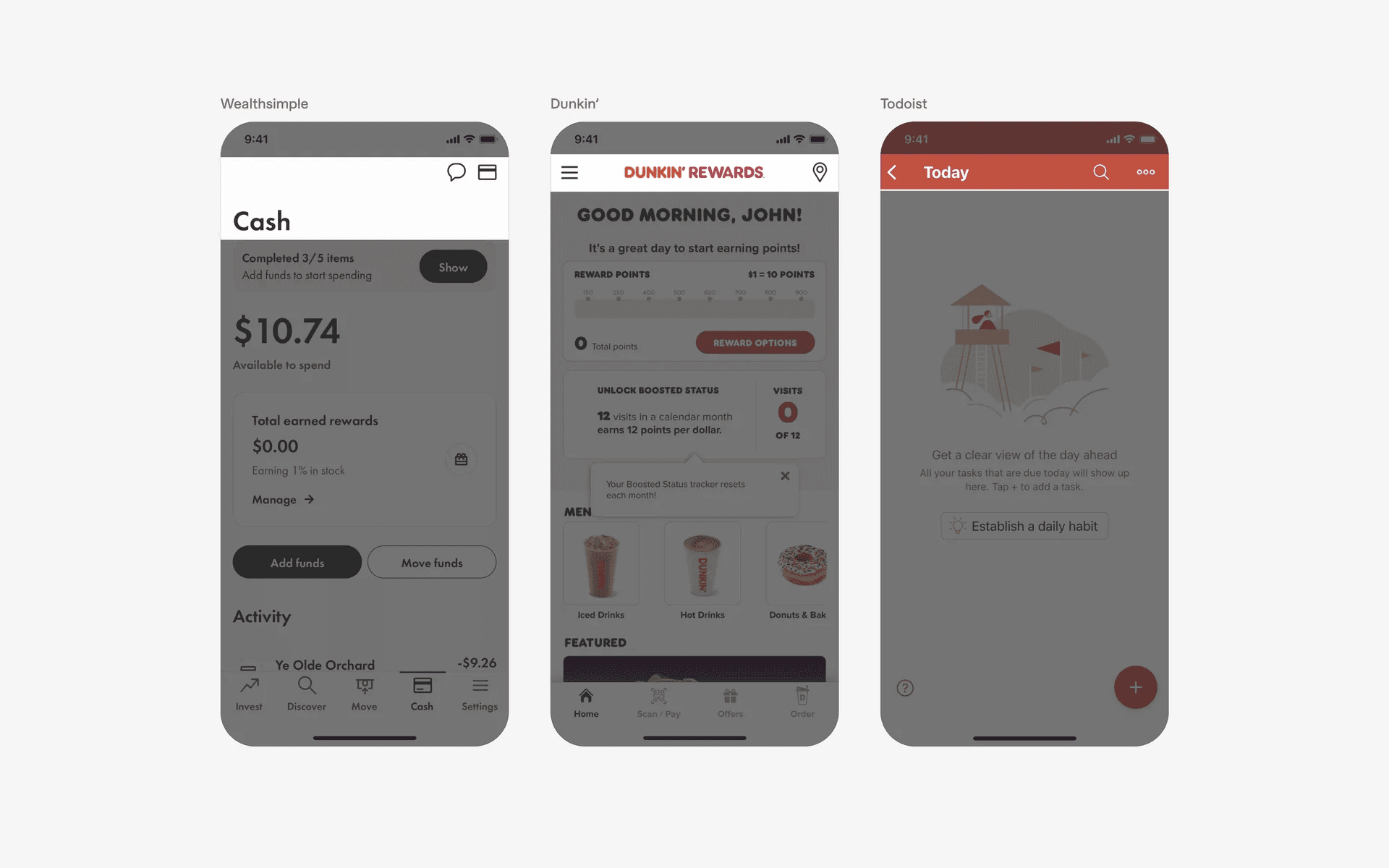
Examples of top navigation bar
What is the anatomy of horizontal navigation bars?
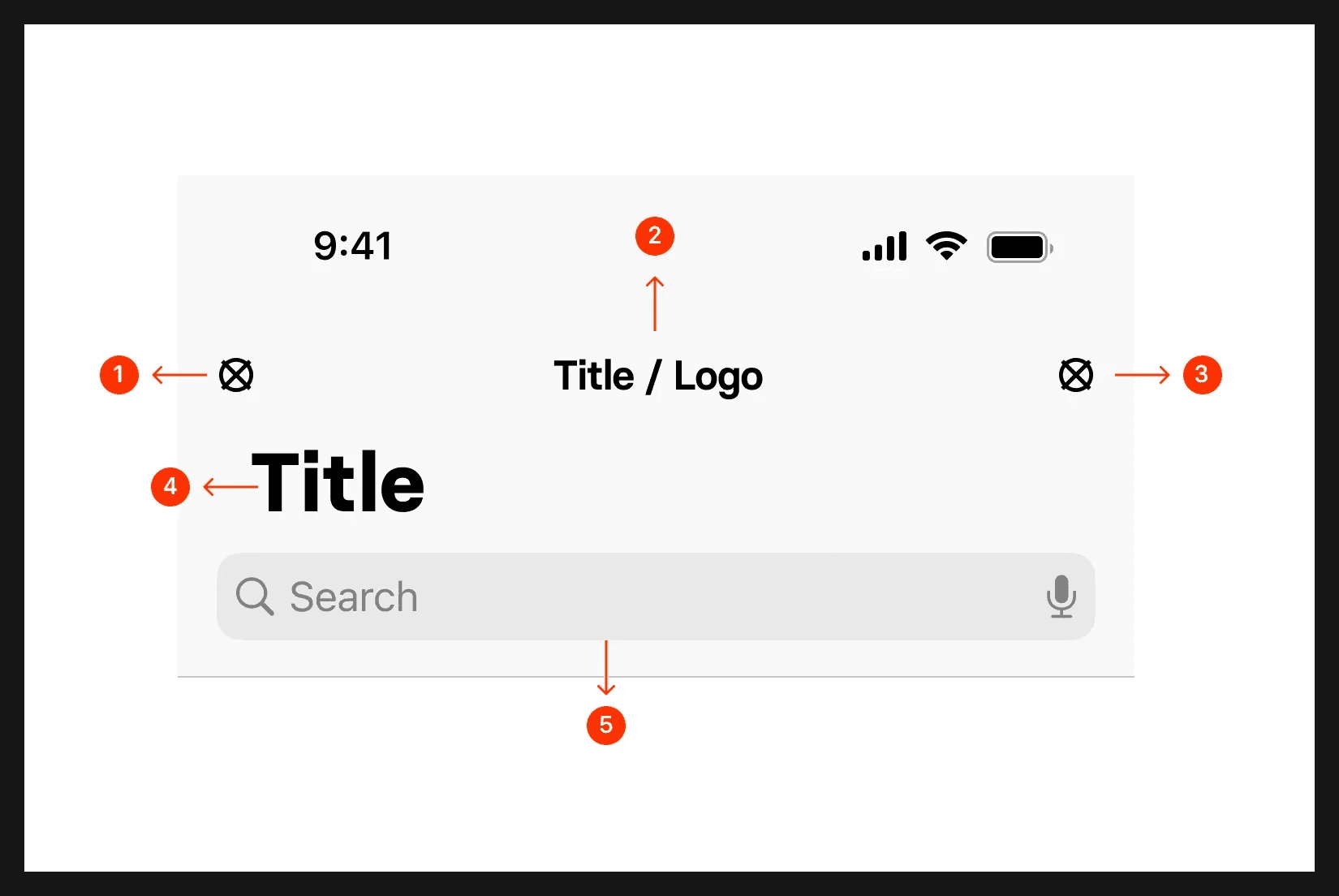
Anatomy of horizontal navigation bar
What are the design variants of a top navigation bar?
We studied over 3,000+ top navigation bar UI components on Mobbin, from real-world examples and found the following variants.
1. Larger headers in navbar
It is common to pair navigation bar with headers as it allows users to quickly learn which screen they are on.
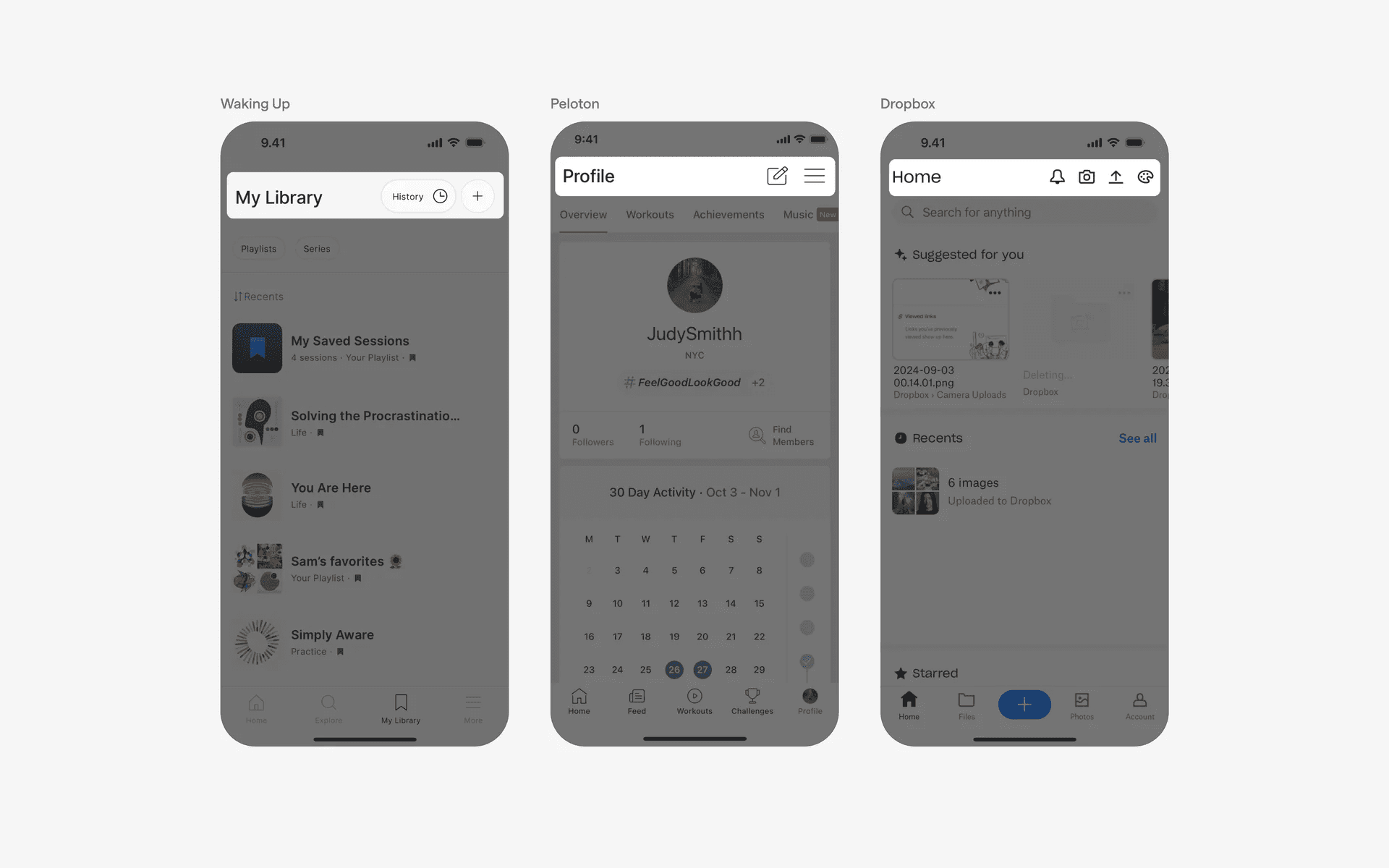
Examples of navbar with large headers
2. App logo in navbar for branding purposes
Many apps also choose to add their logos in the top navigation bar as a form of design branding so that users always know which app they are using.
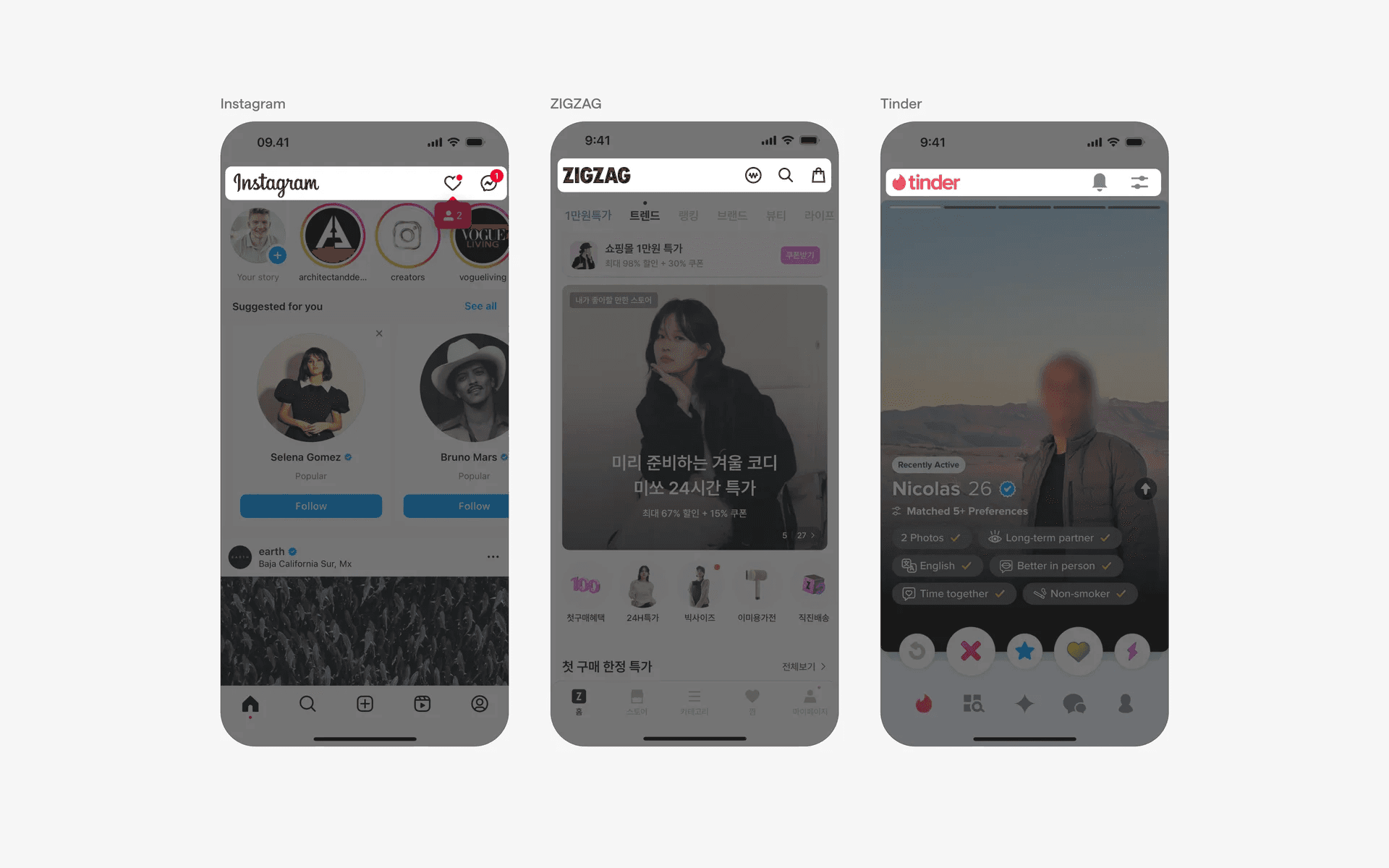
Examples of navbar with app logo
3. Action buttons in navbar
In order to prevent cluttering the tab bar design, designers can opt to put less important screens in the top navigation bar instead.
Note that the top of the screen is harder to access with one hand on mobile devices, and it is only advisable to add action buttons here if they are not primary or crucial. If not, consider using a floating action button instead.
Examples of right-aligned action buttons.
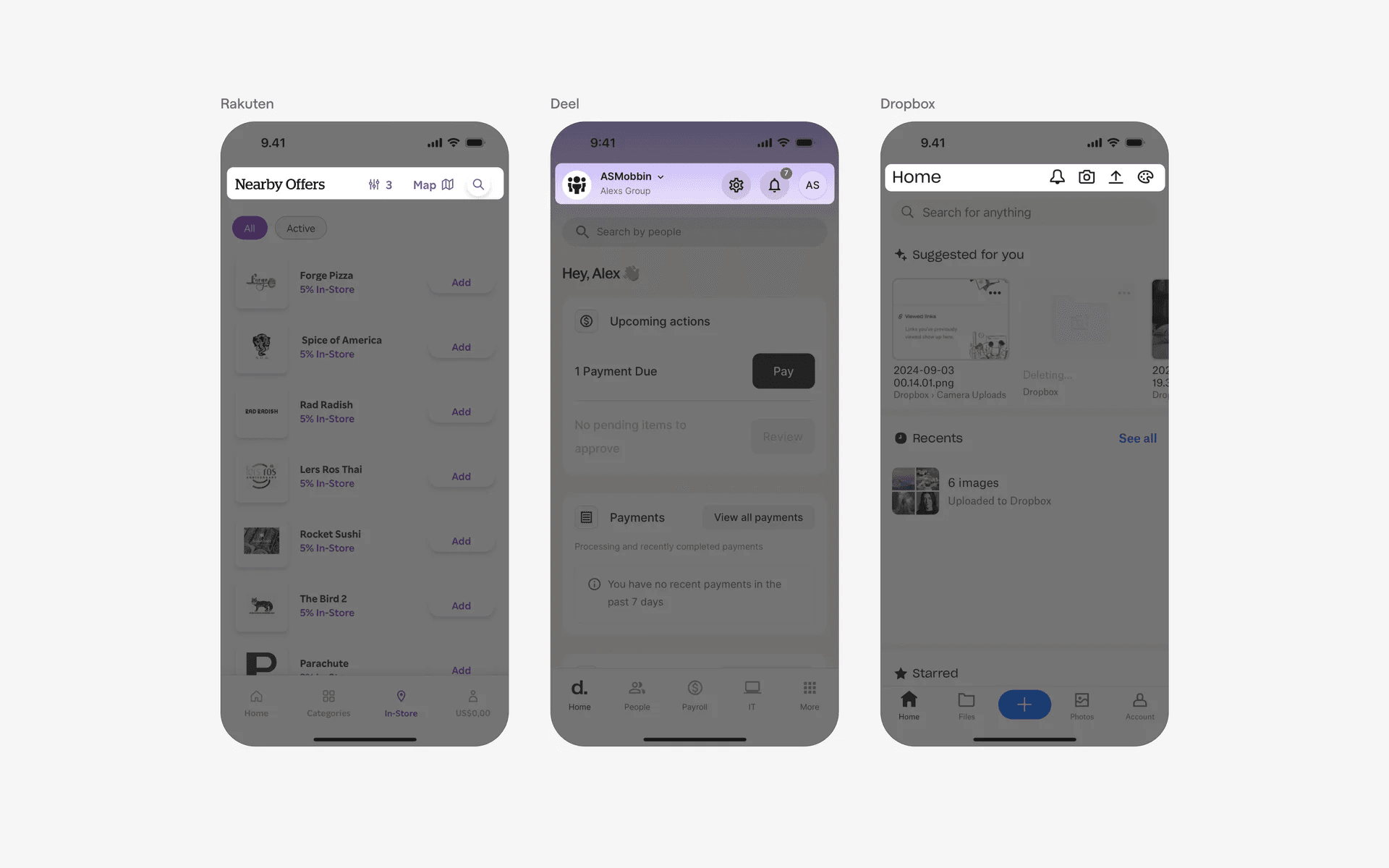
Examples of right-aligned action buttons.
If you have a hamburger menu in your top navigation bar, consider putting your action buttons on each side instead.
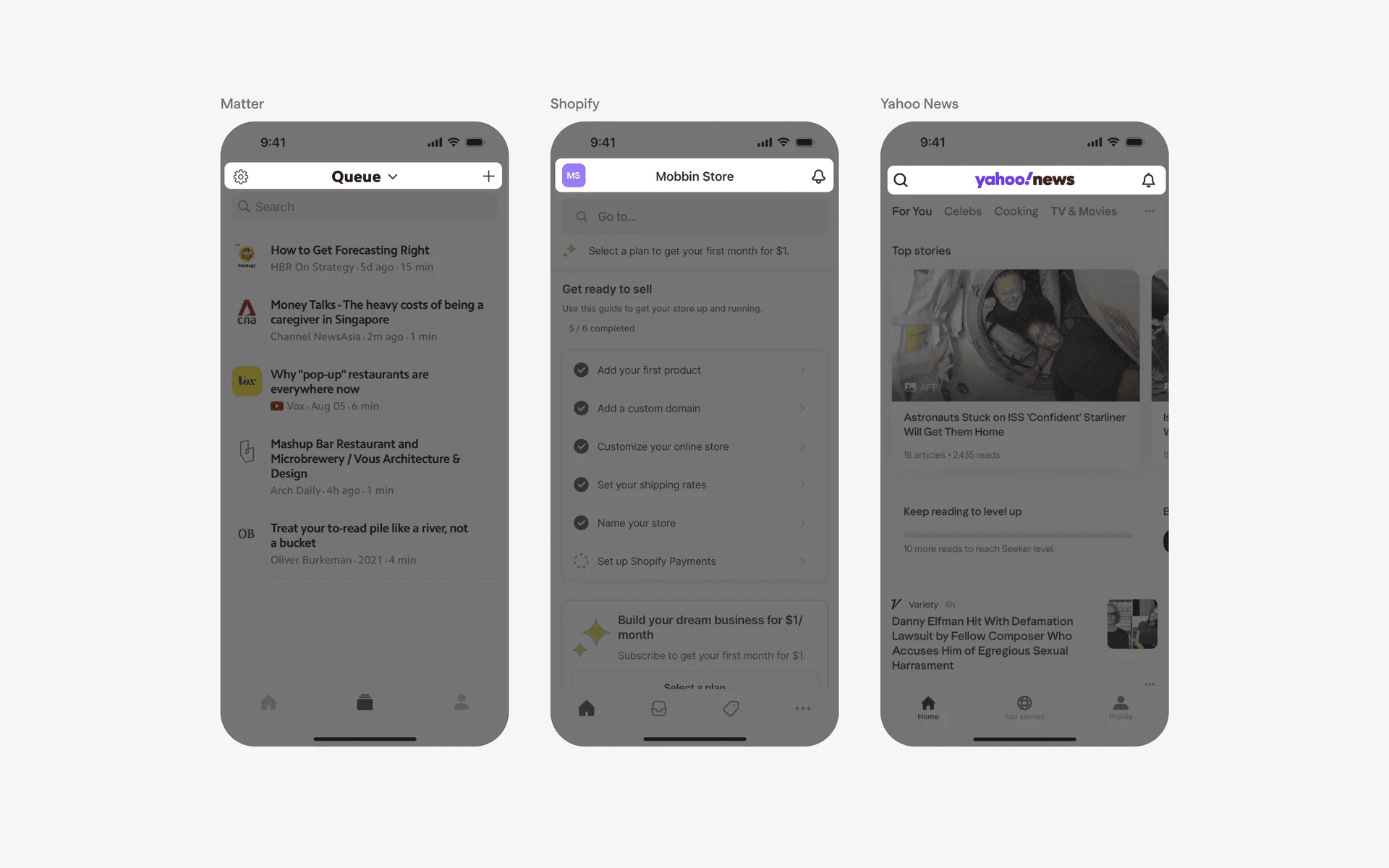
Examples of one action button on each side of navbar.
4. Navbar with back buttons
It is common to include a back button in the top navigation bar if users navigate from a main screen to a detail screen. For example, clicking on a profile page in Instagram.
A back button on the navbar signals to the users that they can revert back to the main screen by swiping right, or clicking on the back button.
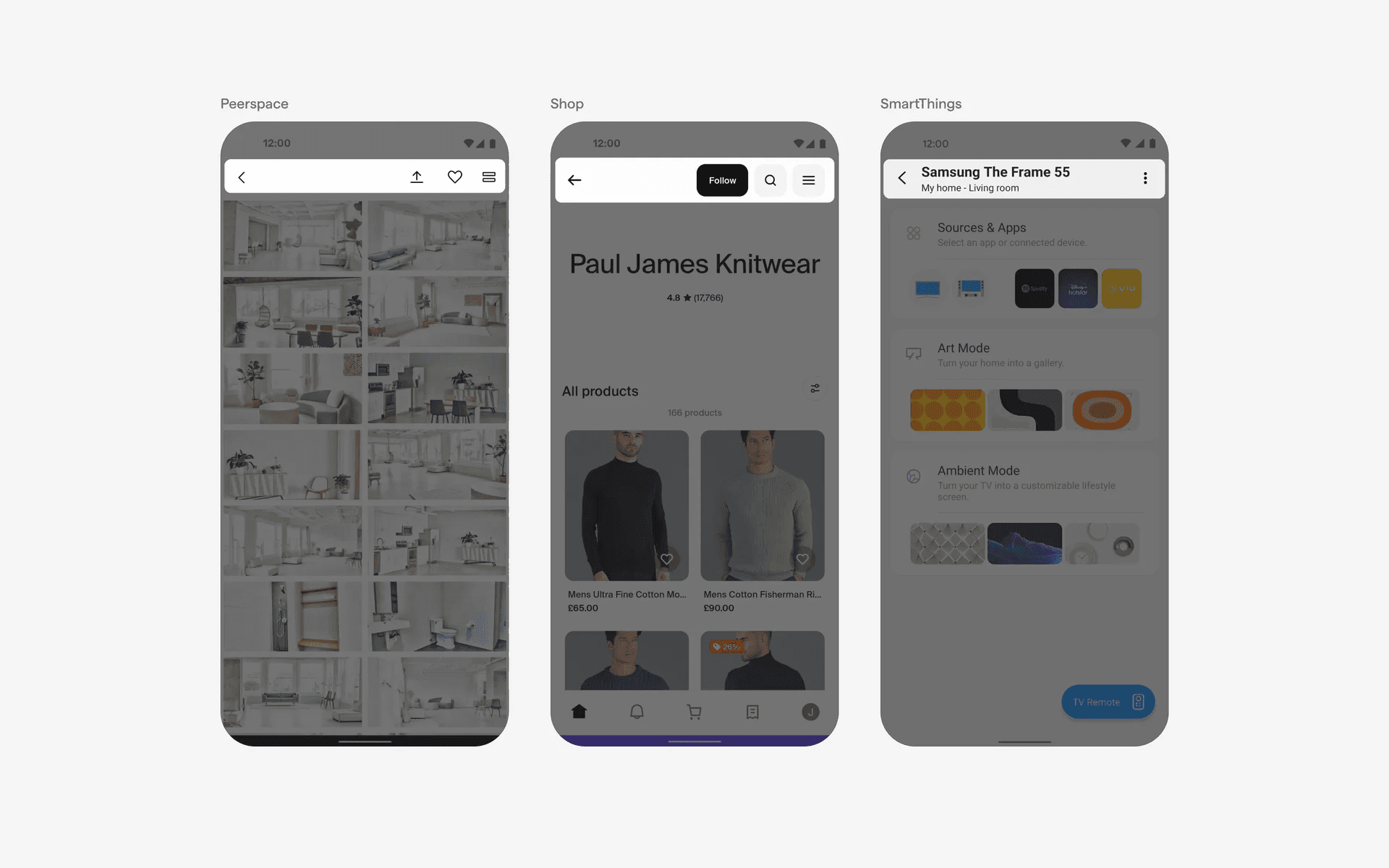
Examples of navbar with back buttons
5. Navbar with search bars
For shopping or content apps, it is common to include a search bar in the top navigation bar.
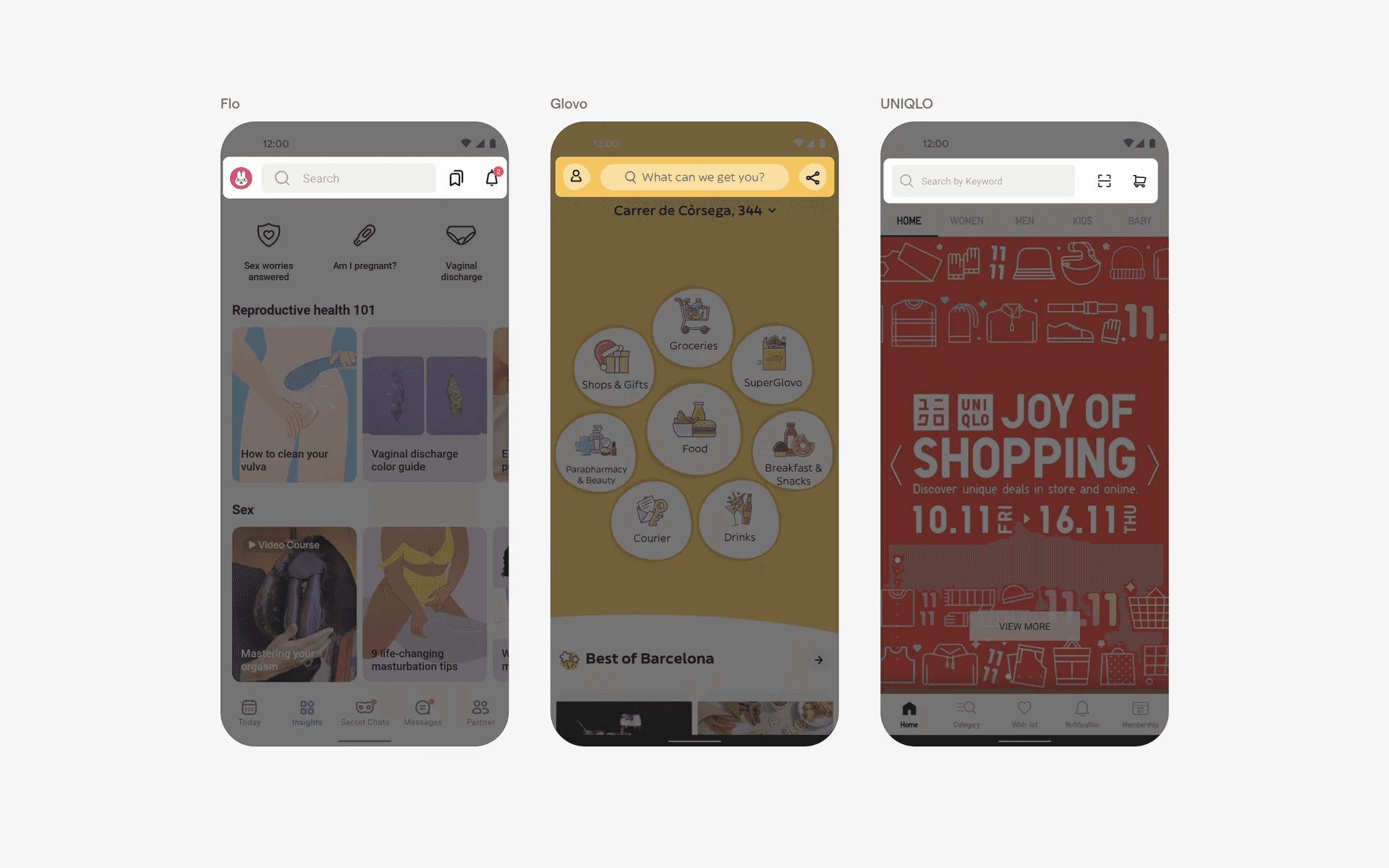
Examples of navbar with search inputs
6. Floating top navigation bar
Finally, for apps that are more visually oriented, they may opt to fully utilize as much screen space as possible.
Having a floating top navigation bar helps to maximize this effect since the navigation bar takes up less space. Examples of apps using this variant include Snapchat, TikTok and MacDonalds.
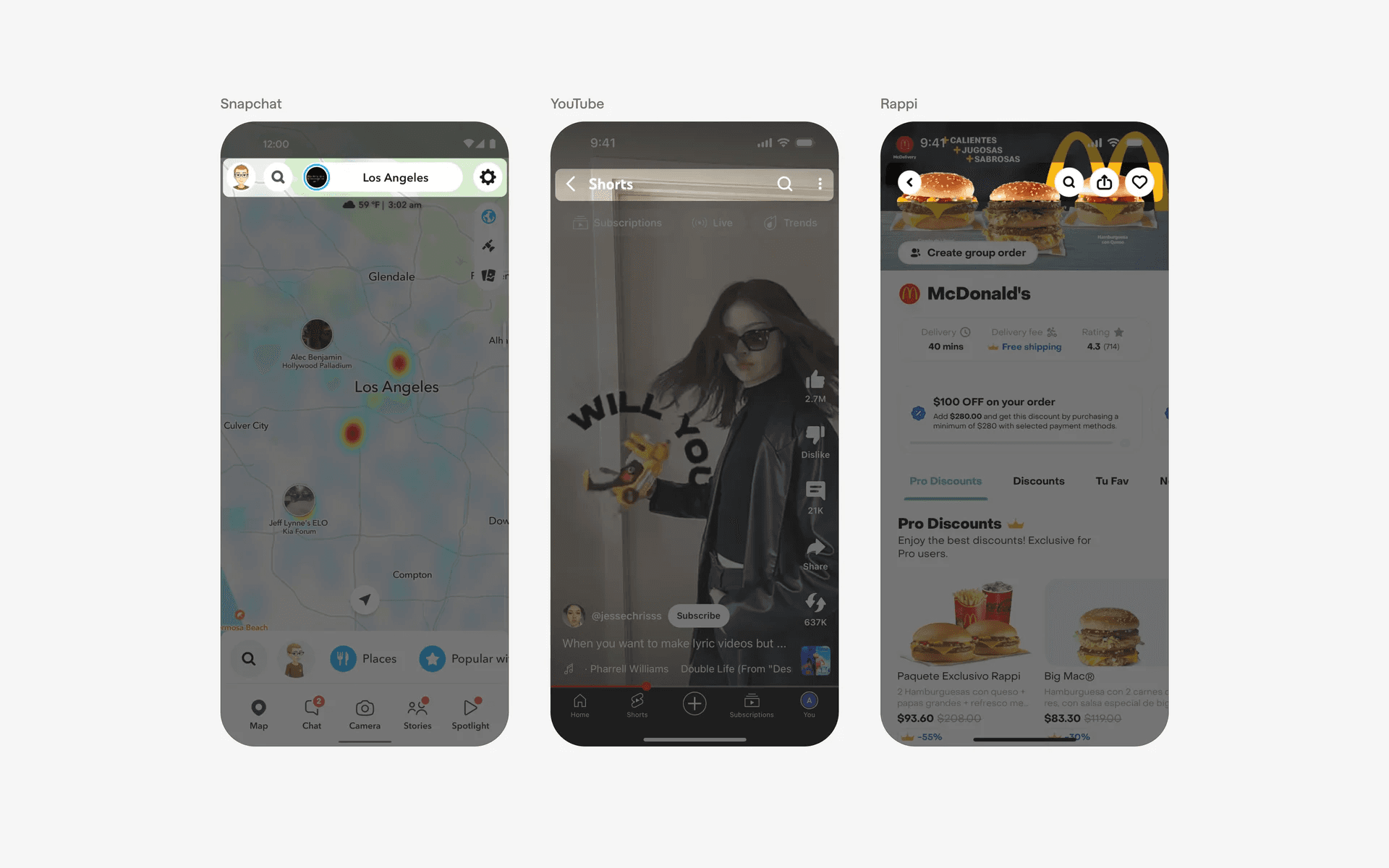
Examples of navbar icons above background image
When to use navigation bars?
1. Title or branding
The navigation bar often includes the app's name or logo to provide branding and ensure users always know which app they are using.
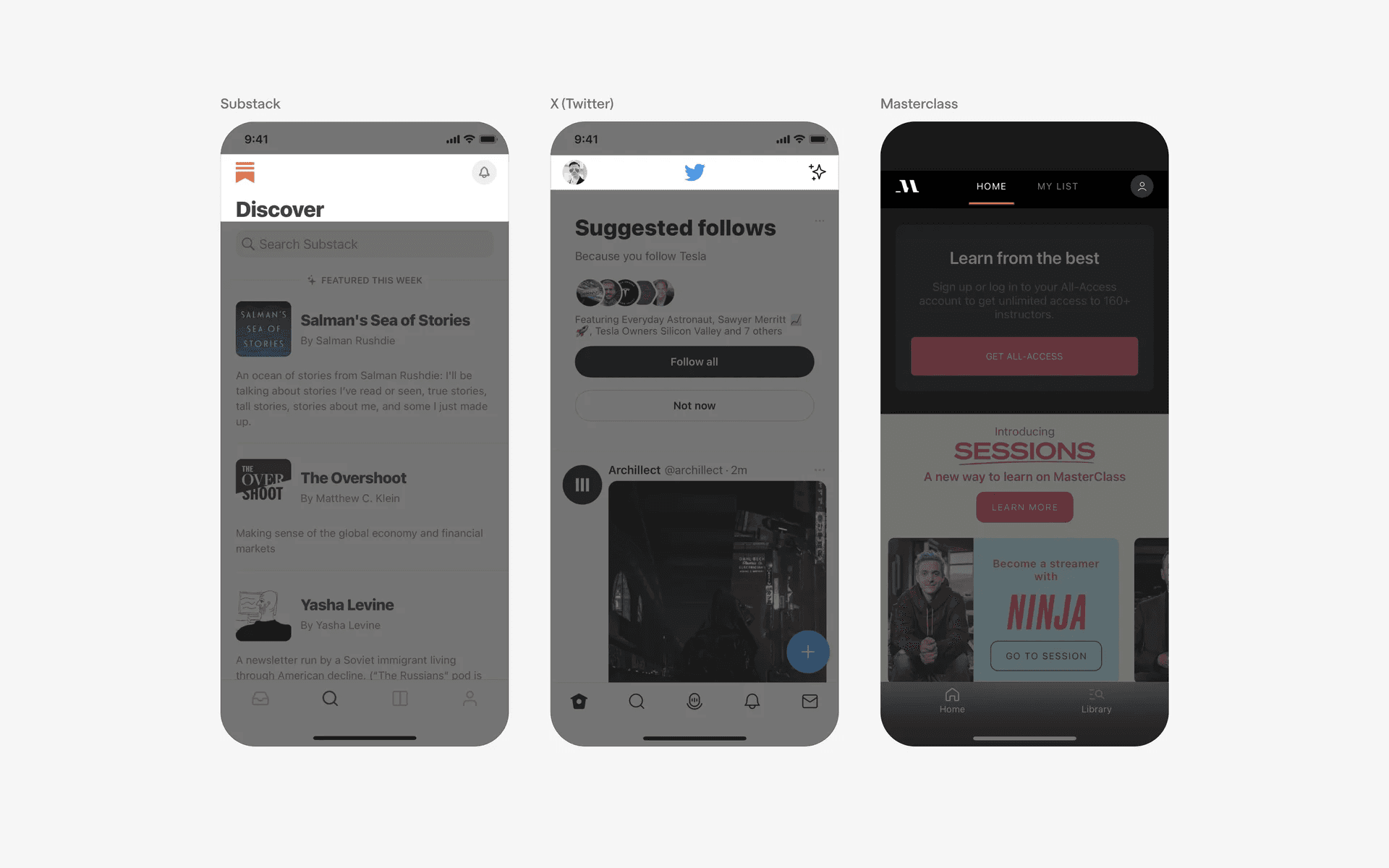
Examples of title or branding in top navigation bar
2. Action buttons
Some apps place important action buttons, such as "Add," "Search," or "Settings," in the navigation bar for easy access regardless of the current screen.
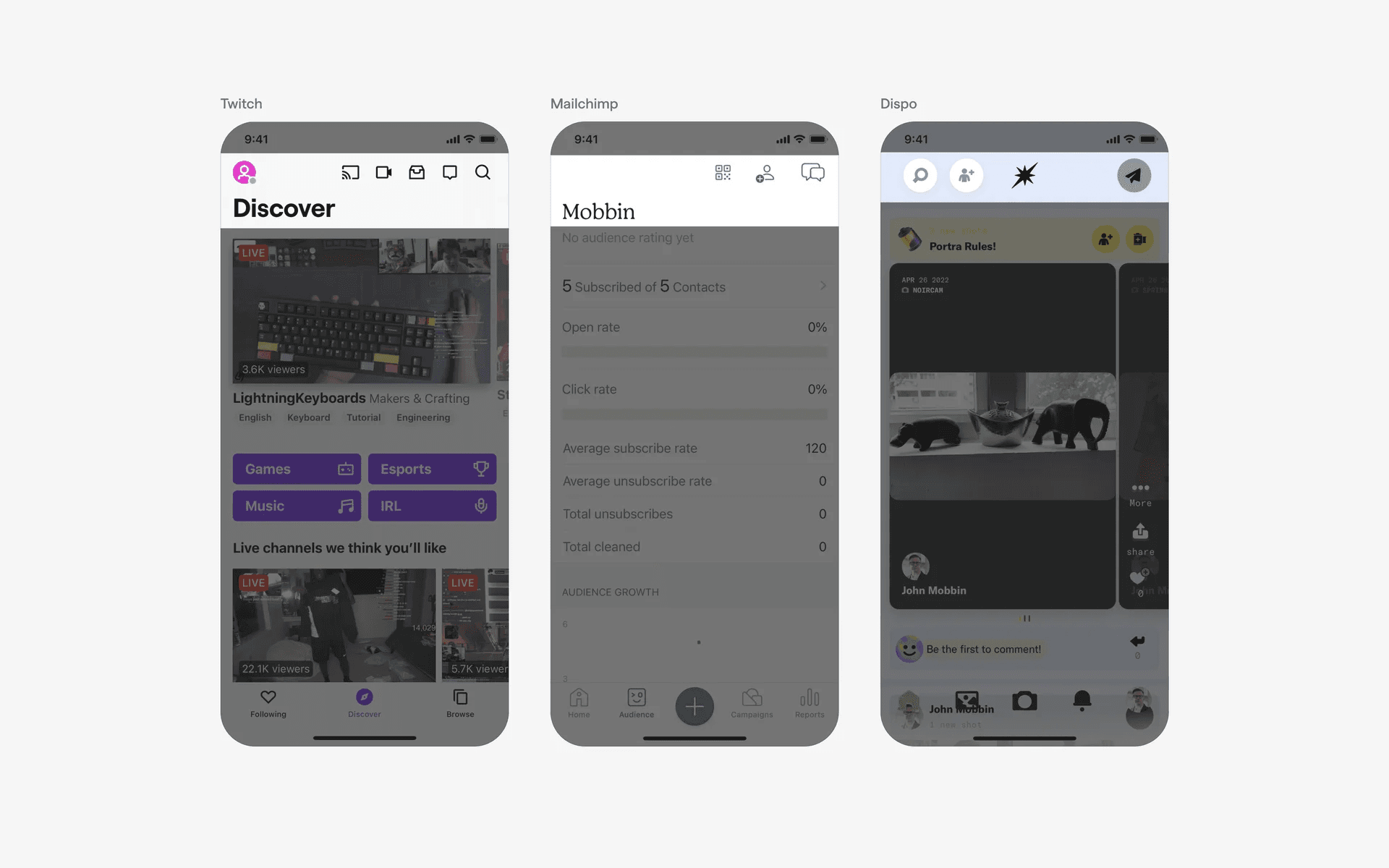
Example of action buttons in navbar
3. Back and home navigation
The navigation bar often includes a back button that allows users to return to the previous screen or go back step by step within the app's navigation hierarchy.
It may also include a home button to quickly return to the app's main screen.
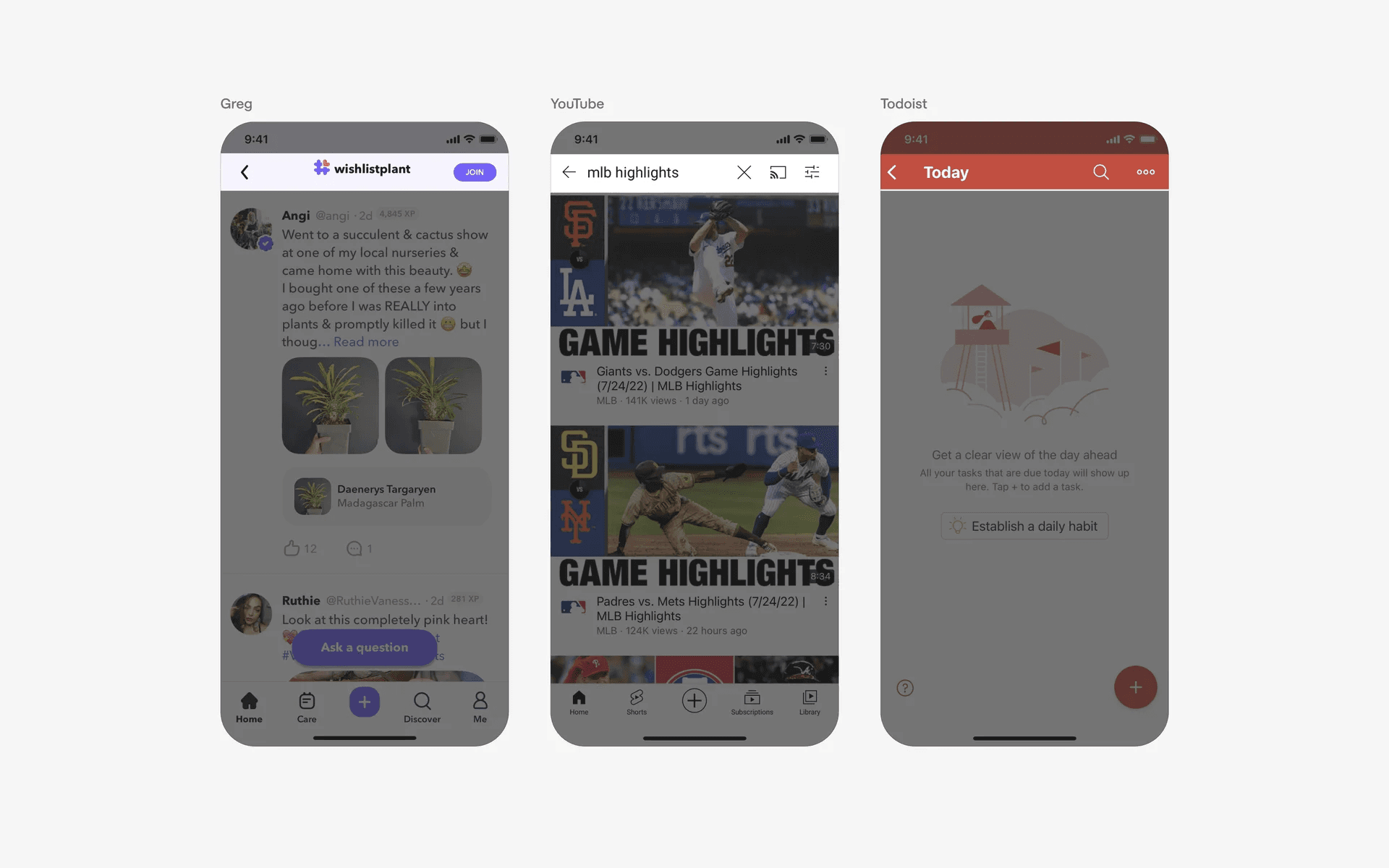
Example of back and home navigation