Sidebar UI

What is a sidebar component?
A sidebar makes it easy for users to navigate an app's features or sections. It may also include extra content or actions to help with tasks.
A common interaction is tapping the hamburger menu icon, which makes a sidebar slide in from the left or right.
When used properly, sidebars help to reduce cognitive load by hiding non-core features like profile, settings, and help screens.
It is commonly seen in design patterns like: Navigation & User Profile.
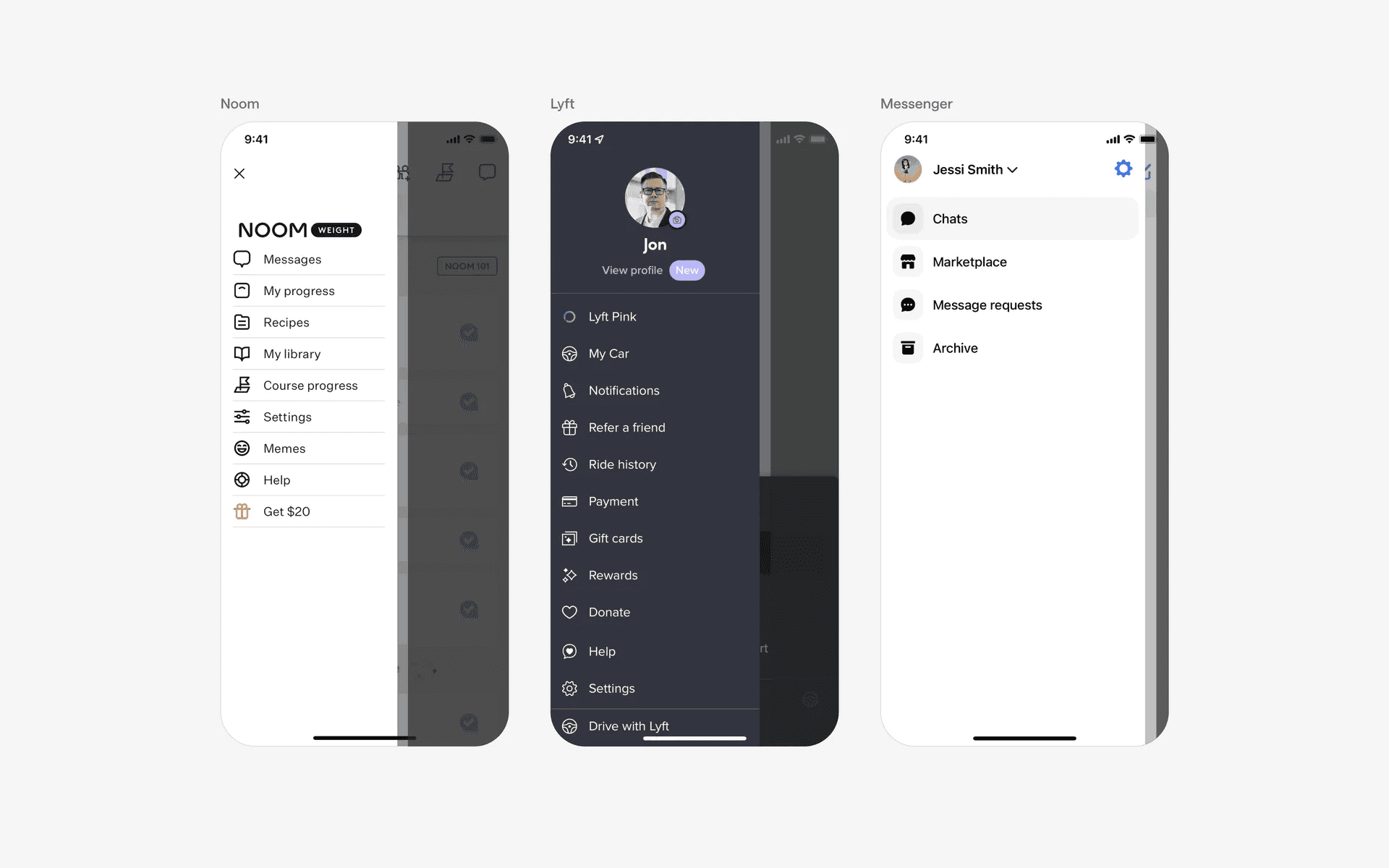
Examples of what sidebars look like in mobile apps.
What is the anatomy of a sidebar component?
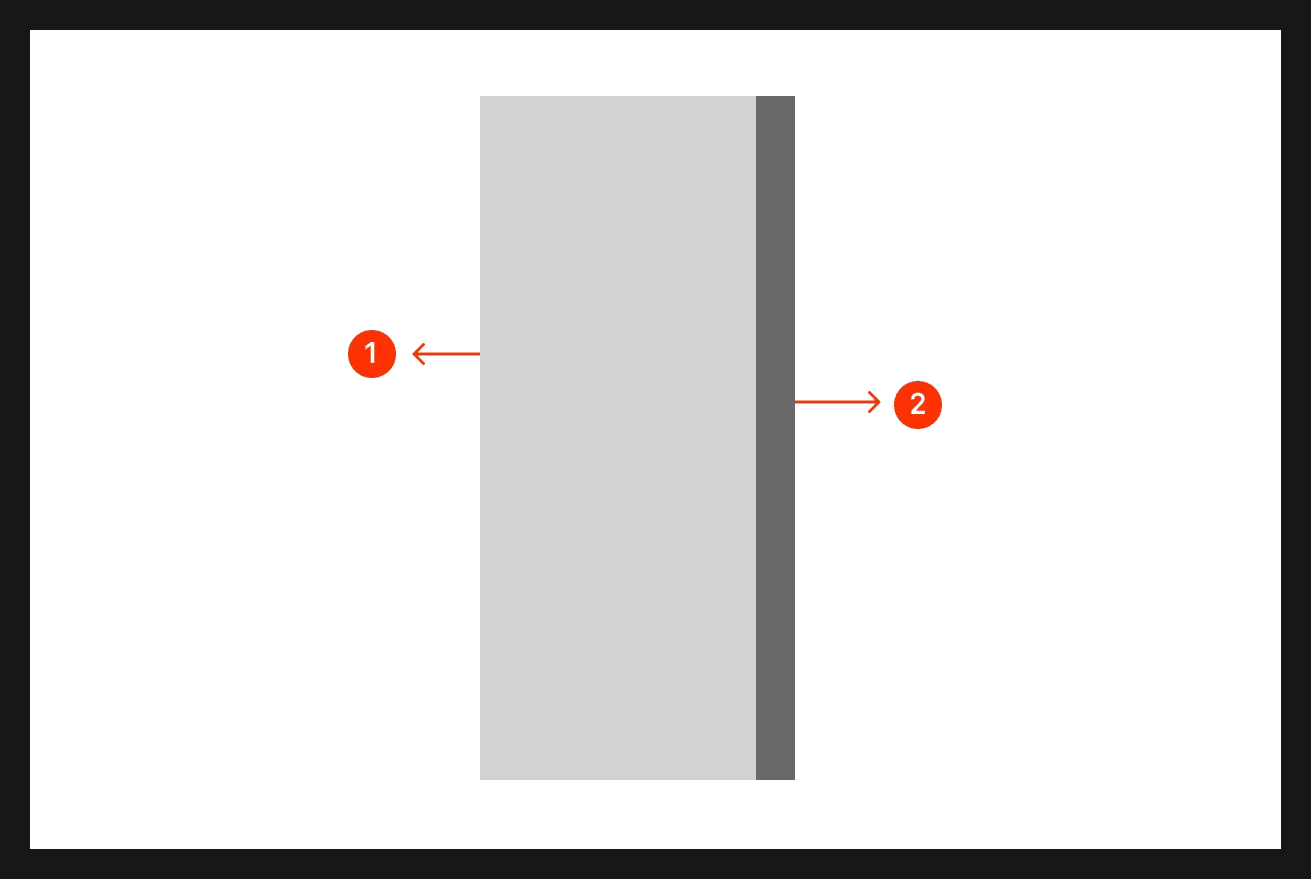
Anatomy of a sidebar.
What are the design variants of a sidebar?
We studied over 1,700+ sidebar UI components on Mobbin, from real-world examples and found the following variants.
1. Drawer style side bars
Here are some drawer styled sidebars that can slide in from either the left or right side.
For the first example, this is a navigation-based drawer style side bar that allows users to navigate across many different pages on the mobile UI. A sidebar UI design is good for more complicated apps that have many pages as it helps hide cognitive load from the main UI.
For the second example, notice that these drawers are sliding in from the right side of the app. These are commonly non-navigation based sidebar UI. Used mostly for filtering & sorting actions, or for displaying more information and functionality contextual to a specific page or action.
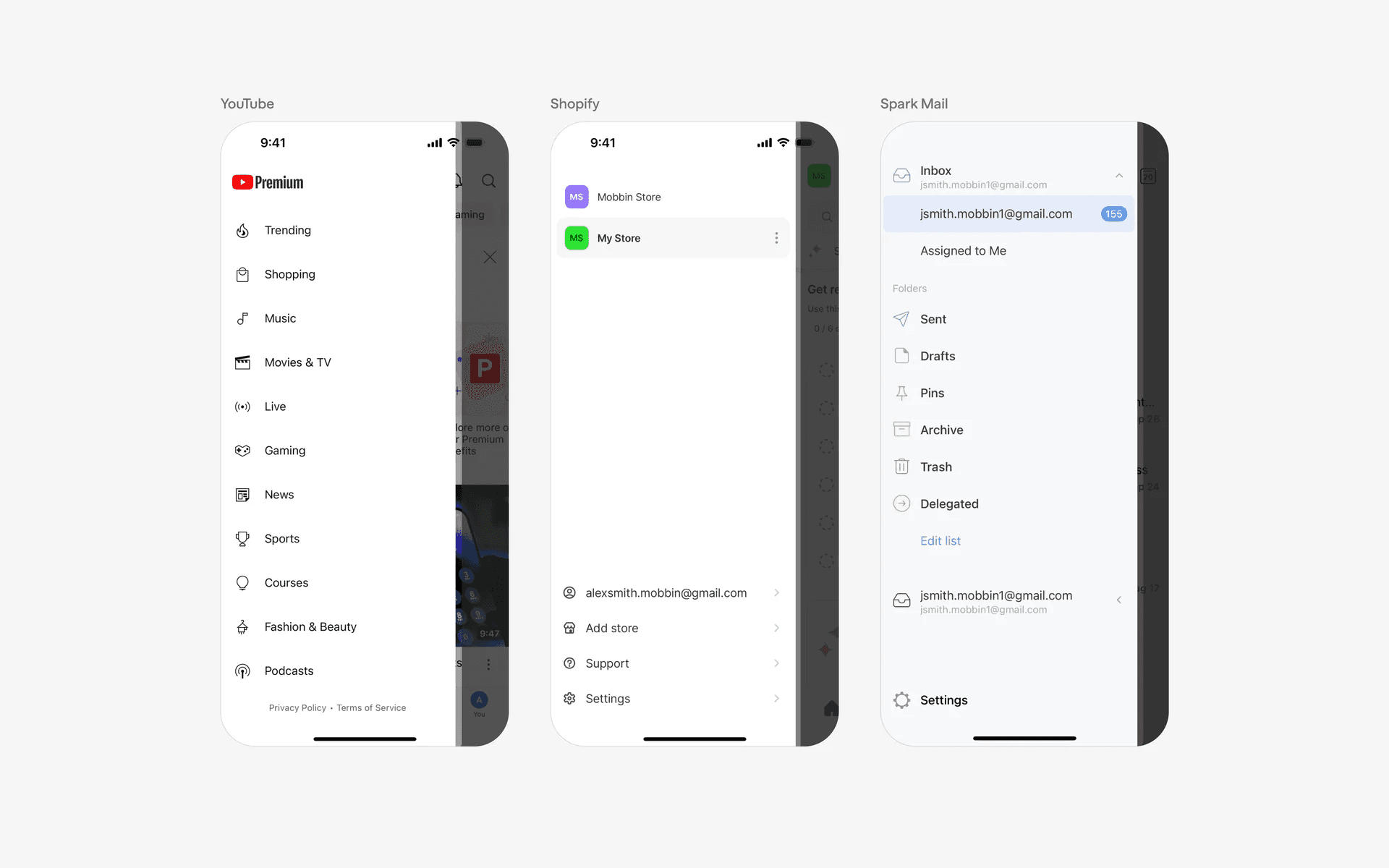
Examples of sidebars sliding in from the left
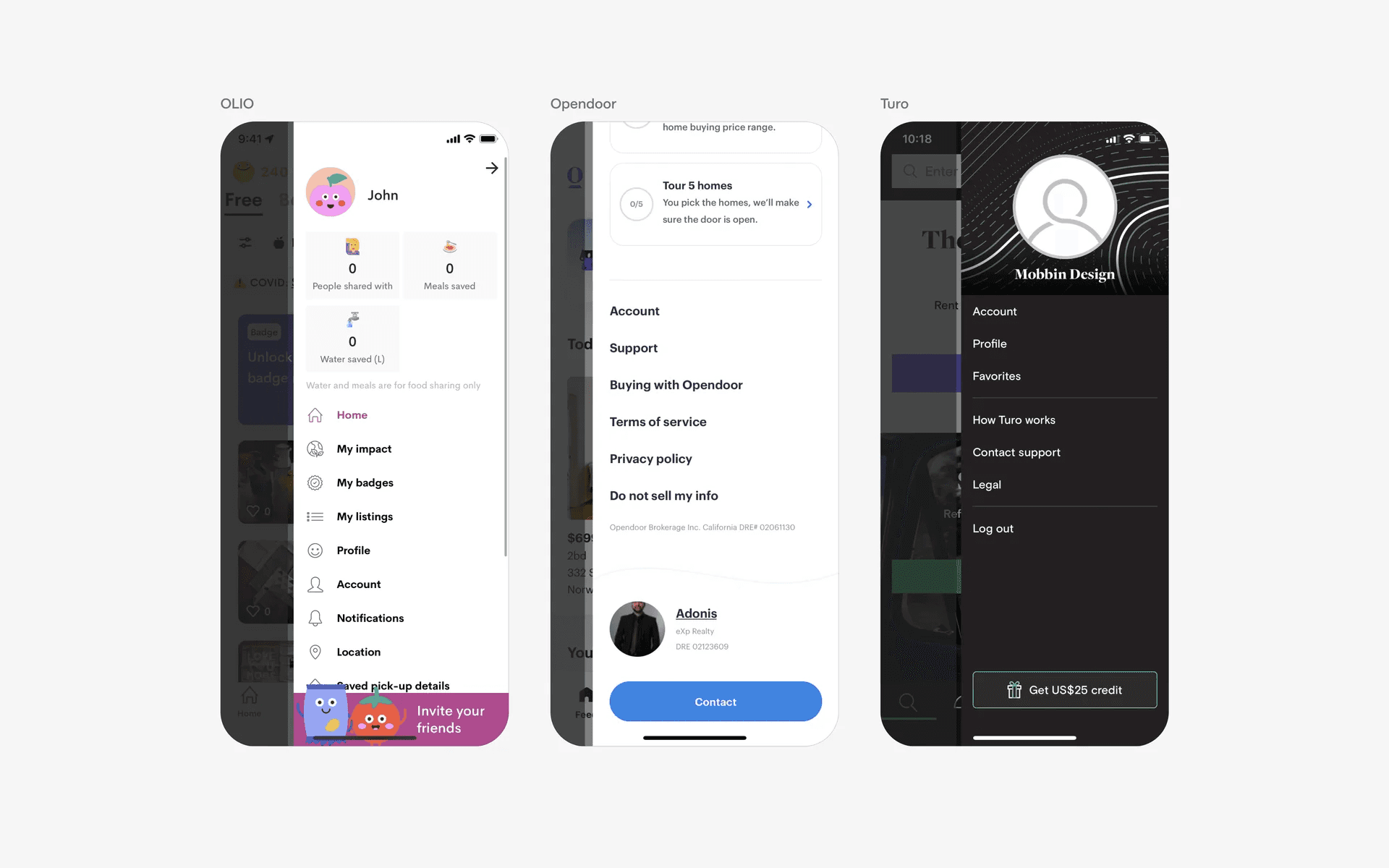
Examples of sidebars sliding in from the right.
2. User profiles in sidebar
In some cases, we observe user profiles being featured prominently at the top of the sidebar. This is used commonly in apps with a social element.
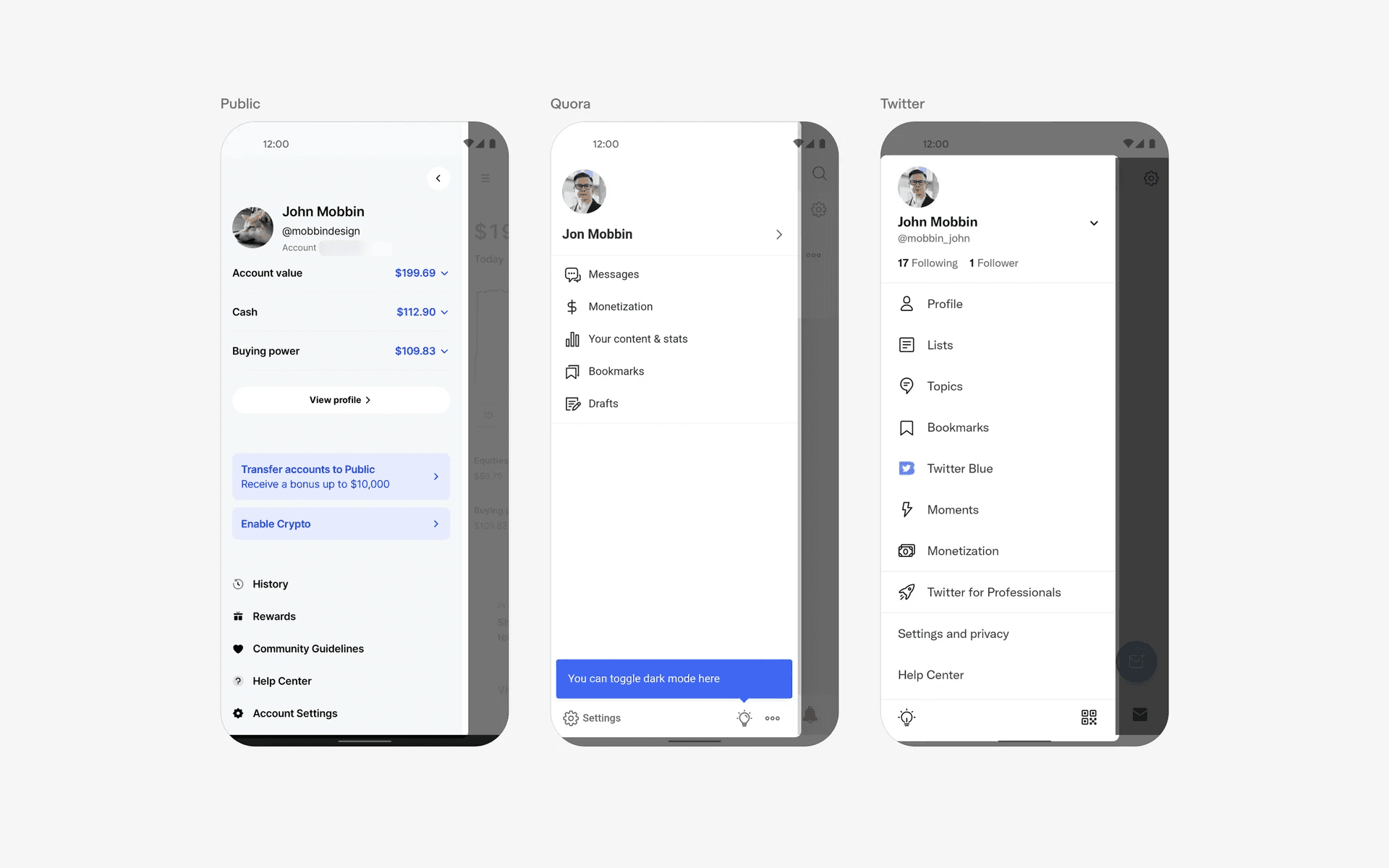
Sidebars with user profiles
3. Navigation rail
A less common variation of the sidebar is a navigation rail. In this case, the sidebar is exposed by default, and does not require the user to click on a hamburger menu icon to open it. This might result in more cognitive load, and should only be used if quick navigation is essential to the user experience.
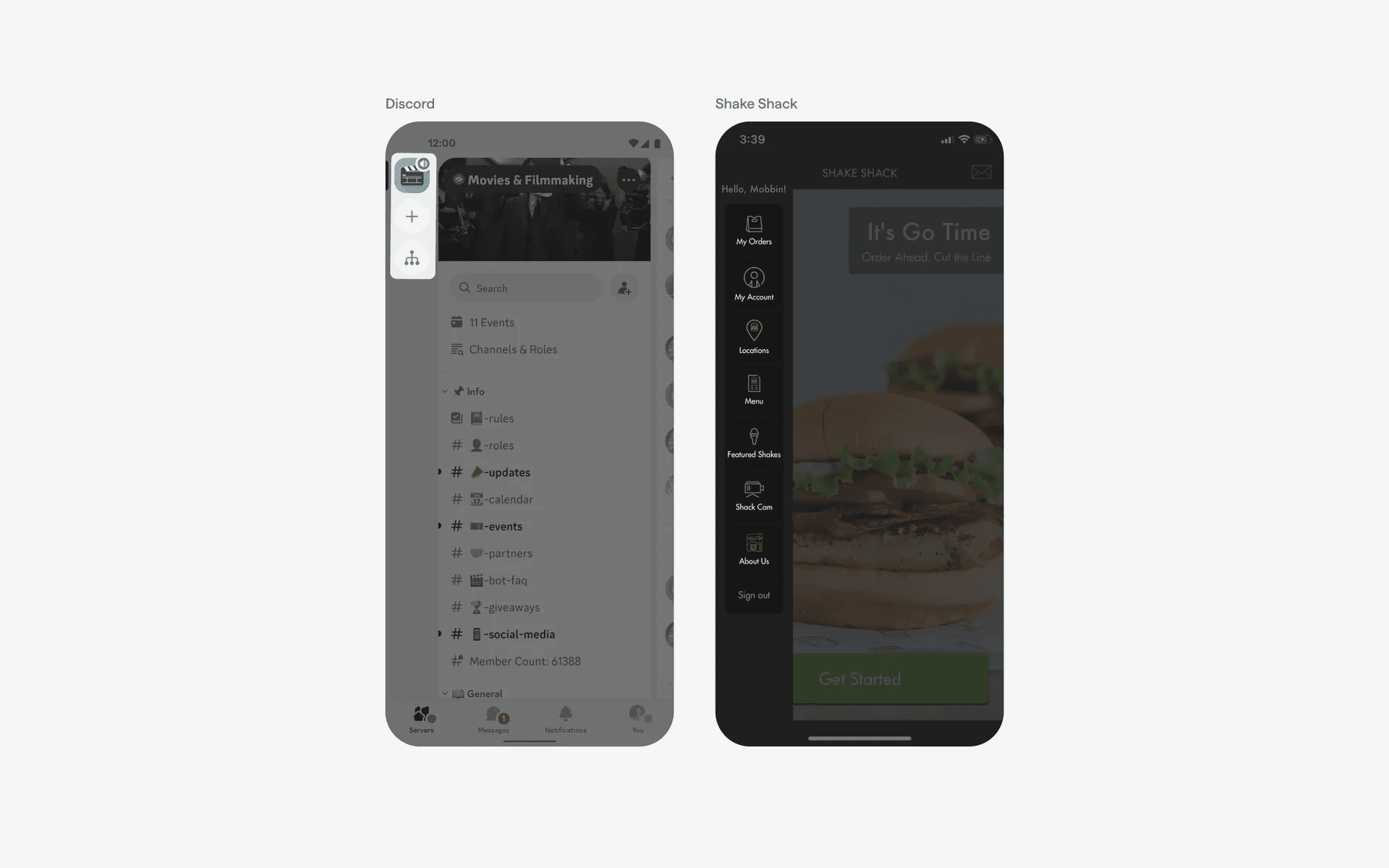
Navigation rail sidebars
When to use a sidebar?
1. Navigation
Sidebars are often used as the primary navigation system in apps that have too many sections to feature them all on the Tab Bar.
They typically contain a list of menu items or icons representing different sections or pages within the app. Users can tap on these items to quickly switch between different views or access specific functionality.
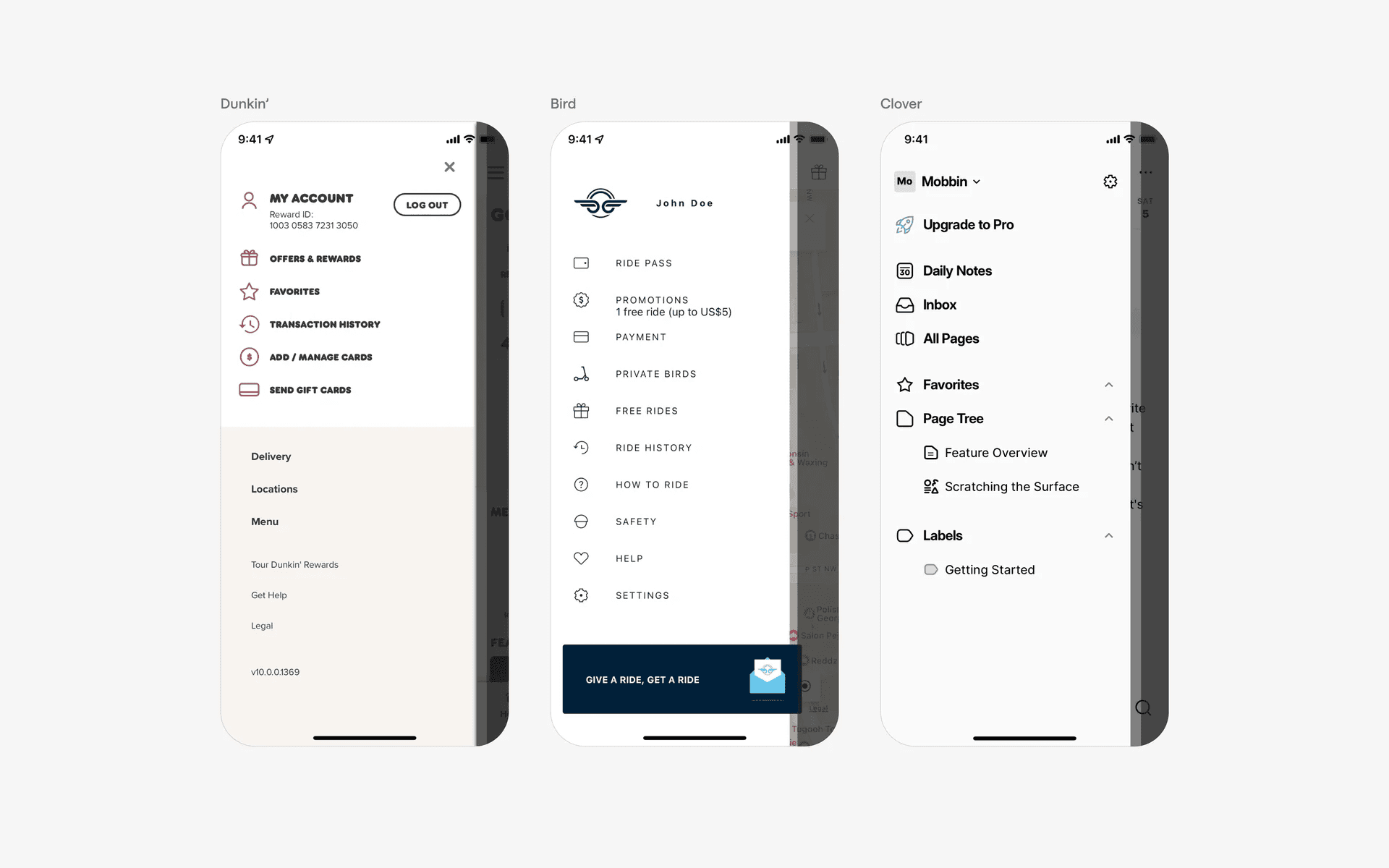
Sidebars being used as navigation for larger apps with more surface area.
2. User profile
Sidebars are commonly used to provide access to user profiles or account-related features.
Users can view and edit their profile information, manage settings, and perform actions related to their accounts.
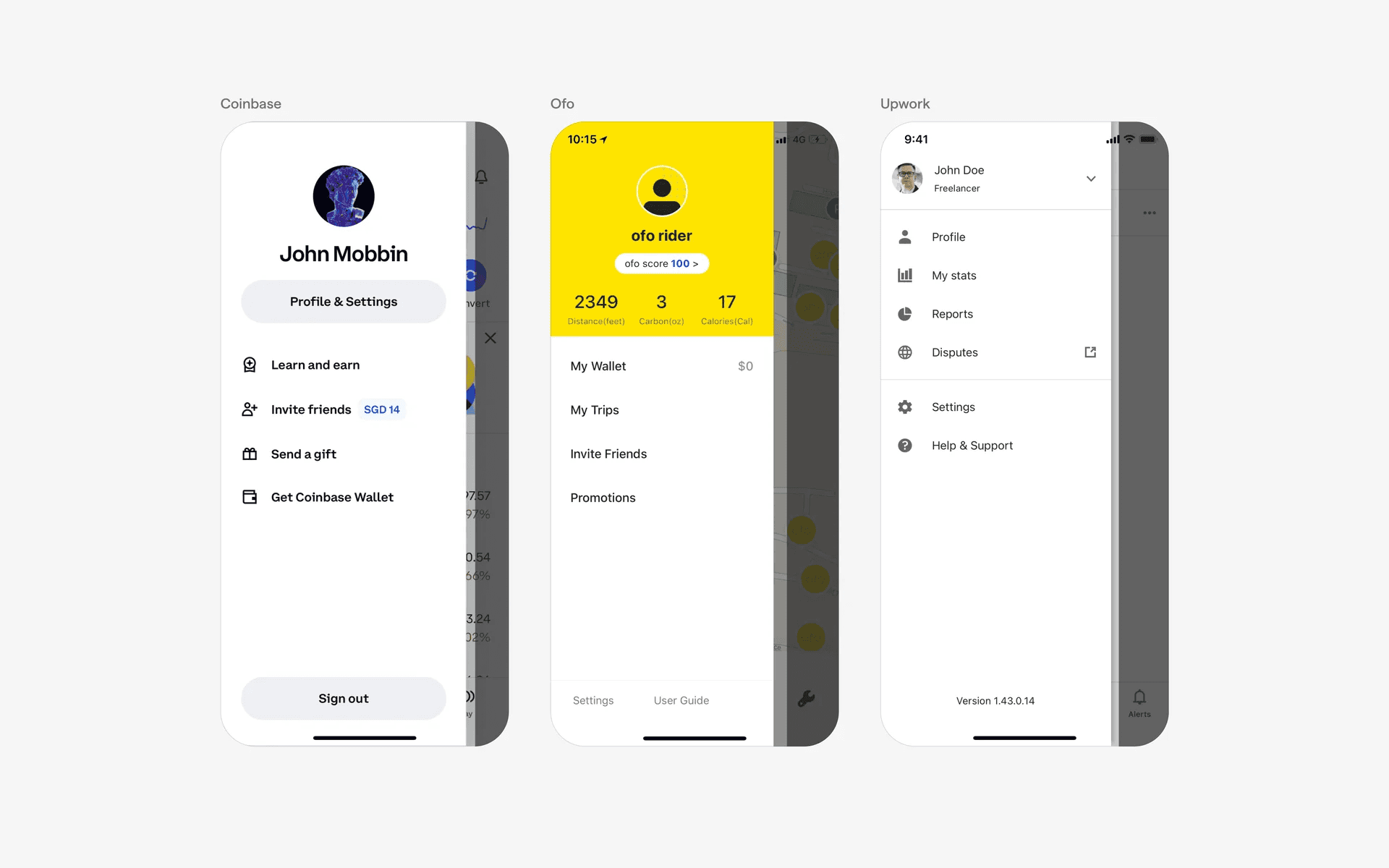
Sidebars are commonly used for user profile.